
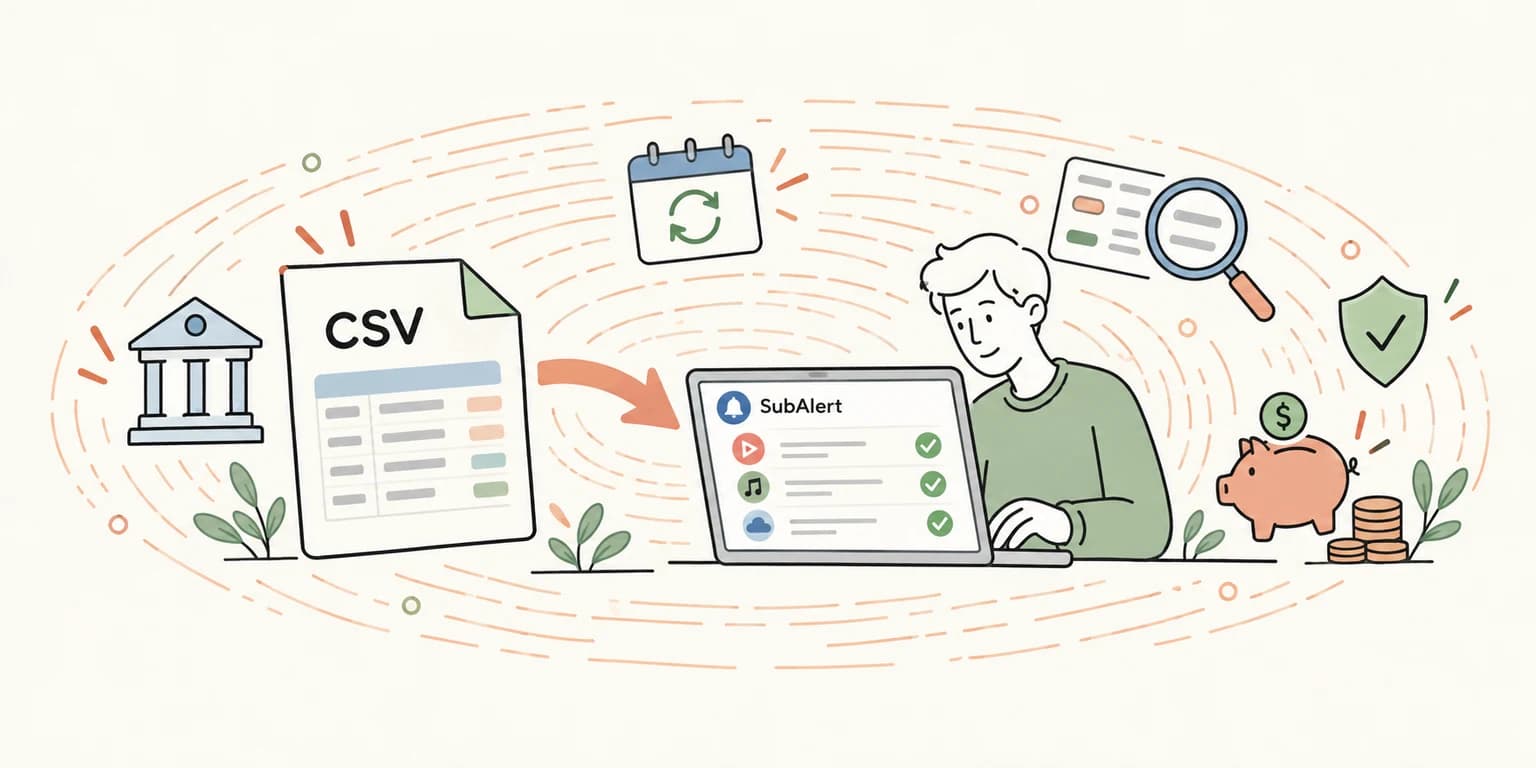
Import Your Subscriptions from a Bank CSV Export
Adding subscriptions by hand works, until you realise you can't remember half of them. Connecting your bank does the work for you, but not everyone wants to link their bank account to an app, and not every bank is supported. There is now a third way: download a transactions export from your bank, drop it into SubAlert, and let us find your recurring payments.
How It Works
Almost every bank lets you download your transactions as a CSV file from online banking. That file already contains everything needed to spot a subscription: who you paid, how much, and when. SubAlert reads it, looks for payments that repeat on a regular schedule, and shows you what it found.
- Open your Subscriptions page and click Import CSV (the upload icon on smaller screens).
- Pick your bank. Banks are grouped by country. If yours isn't listed, choose Other bank.
- Choose your file or drag it into the dialog. Then click Analyze.
- Review what we found. Every detected subscription is listed with its price and billing frequency. Untick anything you don't want to add.
- Click Import. The subscriptions you kept are added to your table, ready for renewal reminders and spending insights.
Nothing is saved until you confirm in step 5.
Built for Real Bank Exports
Bank exports are messy. Every bank uses its own columns, its own language, and its own idea of what a CSV file is. The importer is built to handle that:
- Many banks, many languages. Exports with English, Dutch, German, French, Spanish or Portuguese column headers are recognised, separated by commas, semicolons or tabs. We've tuned it for banks across the Netherlands, Germany, France, the United Kingdom and the United States, including ING, Rabobank, ABN AMRO, bunq, N26, Sparkasse, DKB, BNP Paribas, Crédit Agricole, Monzo, Revolut, Barclays, Chase and American Express.
- Monthly, quarterly and yearly. It recognises all three billing cycles, so the annual software licence shows up next to your monthly streaming plan.
- Price changes don't hide a subscription. When your streaming service raises its price, or your phone and energy bills are indexed every year, the subscription is still detected, with its current price.
- Your coffee is not a subscription. Paying at a café or supermarket every week looks regular, but it isn't something you can cancel. Payments made at a card terminal are left out.
- One-off charges are ignored. A health insurer that bills a monthly premium plus the odd invoice is still recognised by its monthly premium.
- Renamed merchants stay together. When your bank export includes the account the money went to, payments are grouped by that account, so a provider that changes its name on your statement is still one subscription.
Cancelled Subscriptions Are Shown Too
If payments to a service stopped a while ago, you'll still see it in the review, greyed out and marked Inactive with its last payment date. These start unticked. Keep one and it's added as an inactive subscription, so your spending history still reflects what you paid for it.
No Duplicates
Already tracking some of your subscriptions? The importer skips anything that's already in your table. You can safely import a newer export later: only subscriptions you don't have yet are added.
Your File Stays Yours
A bank export is sensitive, so we treat it that way:
- Analysed in memory, never stored. Your file is read, checked for recurring payments, and discarded. It is never written to disk or kept on our servers.
- No bank connection. You decide exactly which file, which account and which date range to share. There's no ongoing access to your bank.
- Checked before it's read. Only
.csvfiles up to 2 MB are accepted, and anything that isn't plain text is refused.
Tips for the Best Results
- Export at least 13 months. Monthly subscriptions show up after a few payments, but a yearly subscription needs to appear at least twice before we can tell it's recurring.
- Export the account your subscriptions are paid from. If you pay some subscriptions by credit card, import that card's statement as well.
- File too big? Exports over 2 MB are refused. Export a single account rather than all of them, or choose a slightly shorter date range.
- Bank not listed? Choose Other bank and try anyway. Most exports use standard column names. Telling us which bank you picked helps us add support for exports we can't read yet.
CSV Import or Bank Connection?
Both find your subscriptions automatically. Pick whichever suits you:
- CSV import is available on every plan, including Free. It works with any bank that lets you export a CSV, needs no access to your bank, and picks up new subscriptions whenever you import a newer export.
- Bank connection (Plaid) is available on Pro and Premium. It uses a read-only connection to banks supported by Plaid and keeps your subscriptions up to date automatically.
CSV import is a great way to get started in a couple of minutes. If you'd rather never think about it again, connecting your bank keeps your list up to date by itself.
Try It Now
Download your transactions from online banking, open your Subscriptions page and click Import CSV. In less time than it takes to scroll through a year of bank statements, you'll know exactly what you're paying for.
Sign up for free and import your first CSV
Have questions about importing a CSV? Visit our FAQ or reach out to our support team at support@subalert.app.